How to Apply a Coupon Code
Got a coupon code for WhatsHappening? Here's exactly where it goes.
One thing to know before you start, because it saves people a lot of frustration:
Coupon codes only work on the web. If you subscribe from inside the iOS or Android app, the purchase goes through Apple or Google — and their checkout has no place to enter our codes. To use a coupon, subscribe at app.whatshappening.ai in a browser.
You can do this on your phone's browser (that's what the screenshots below show) or on a laptop. Either is fine. Once you've subscribed on the web, your subscription works everywhere you're signed in — including the app.
The whole thing takes about a minute.
1. Open the web app and sign in
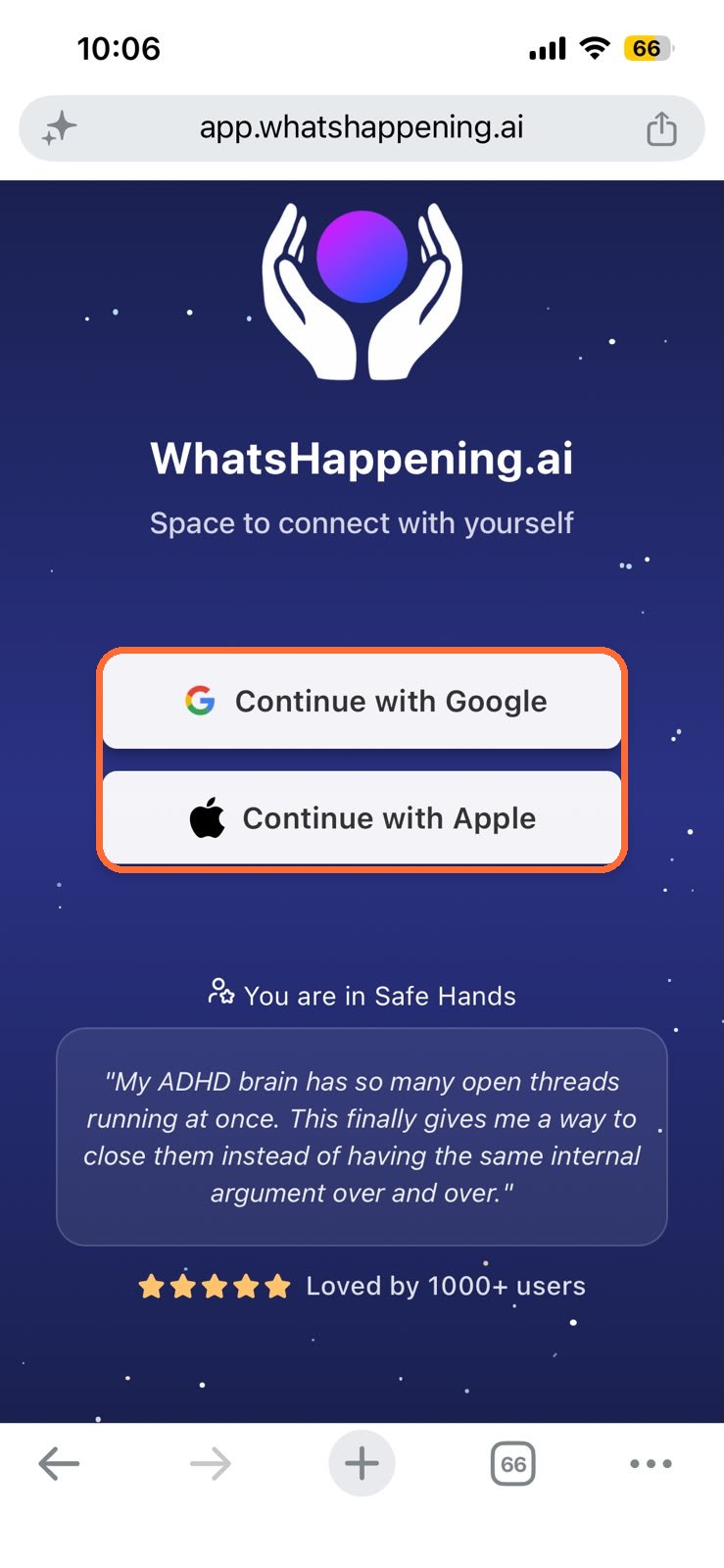
Go to app.whatshappening.ai and sign in with Google or Apple.
Use the same account you already journal with. If you're new, either option creates your account right here.
2. Tap the menu button
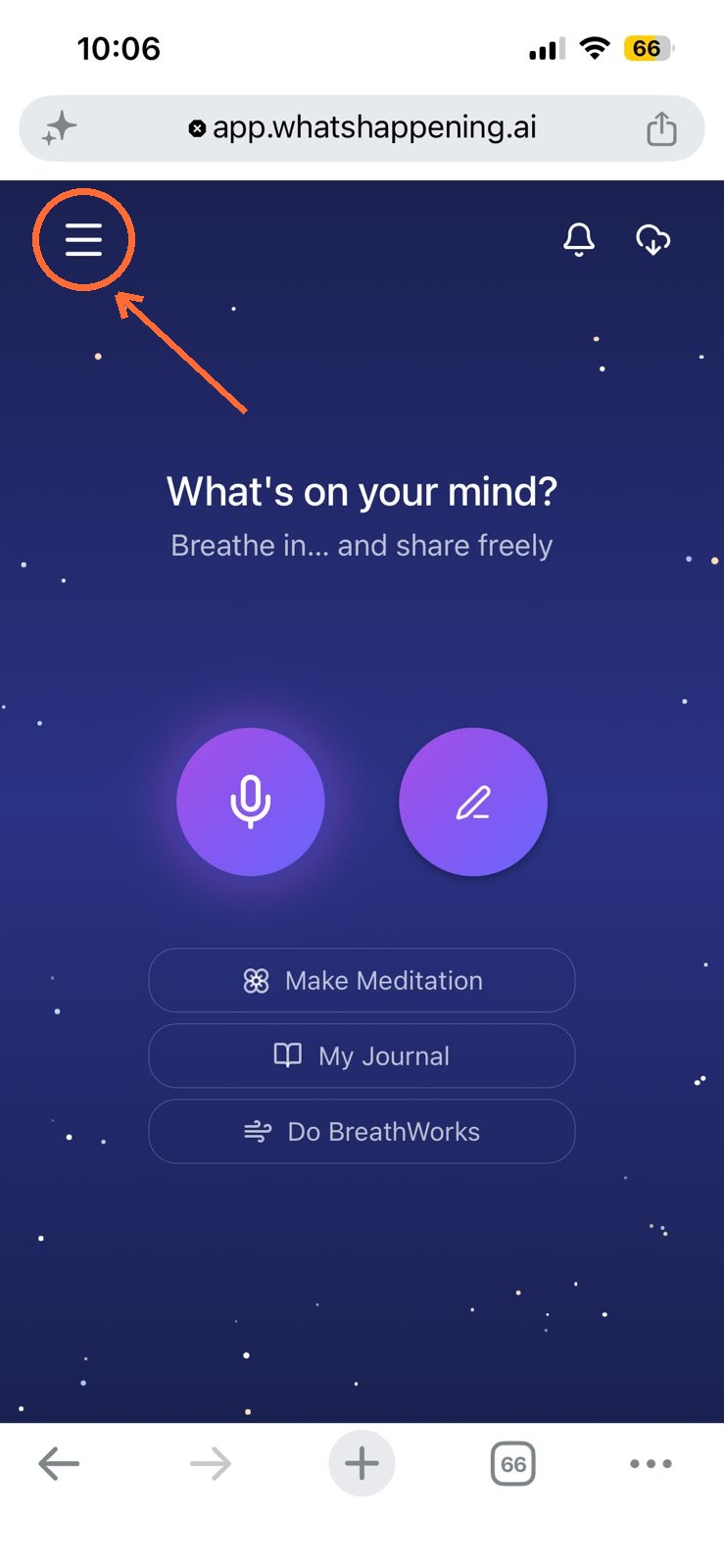
Once you're in, tap the menu icon in the top-left corner.
3. Open your profile
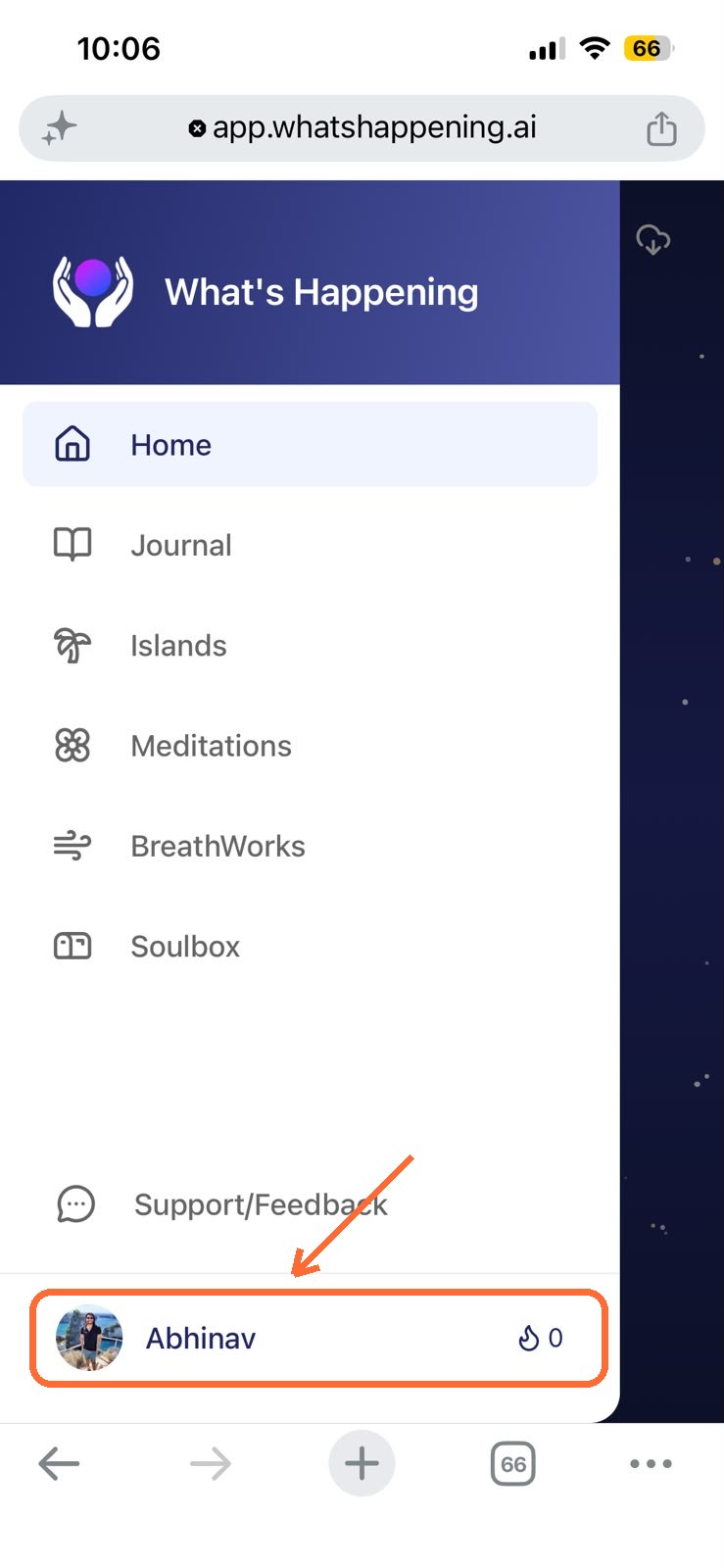
The menu slides out. At the very bottom, tap your name and photo.
4. Tap "Unlock Everything"
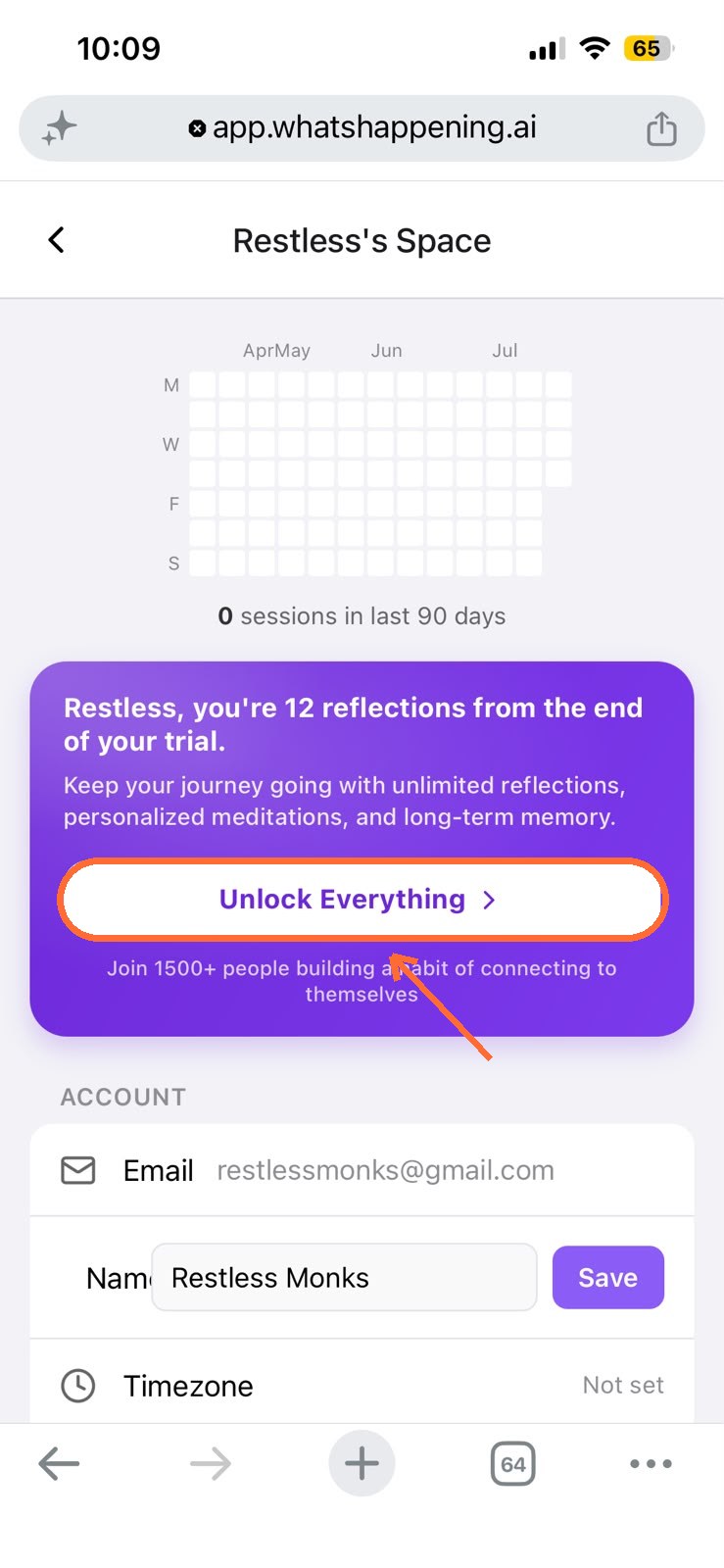
This is your space — your streak, your account details, and the subscribe option. Tap Unlock Everything.
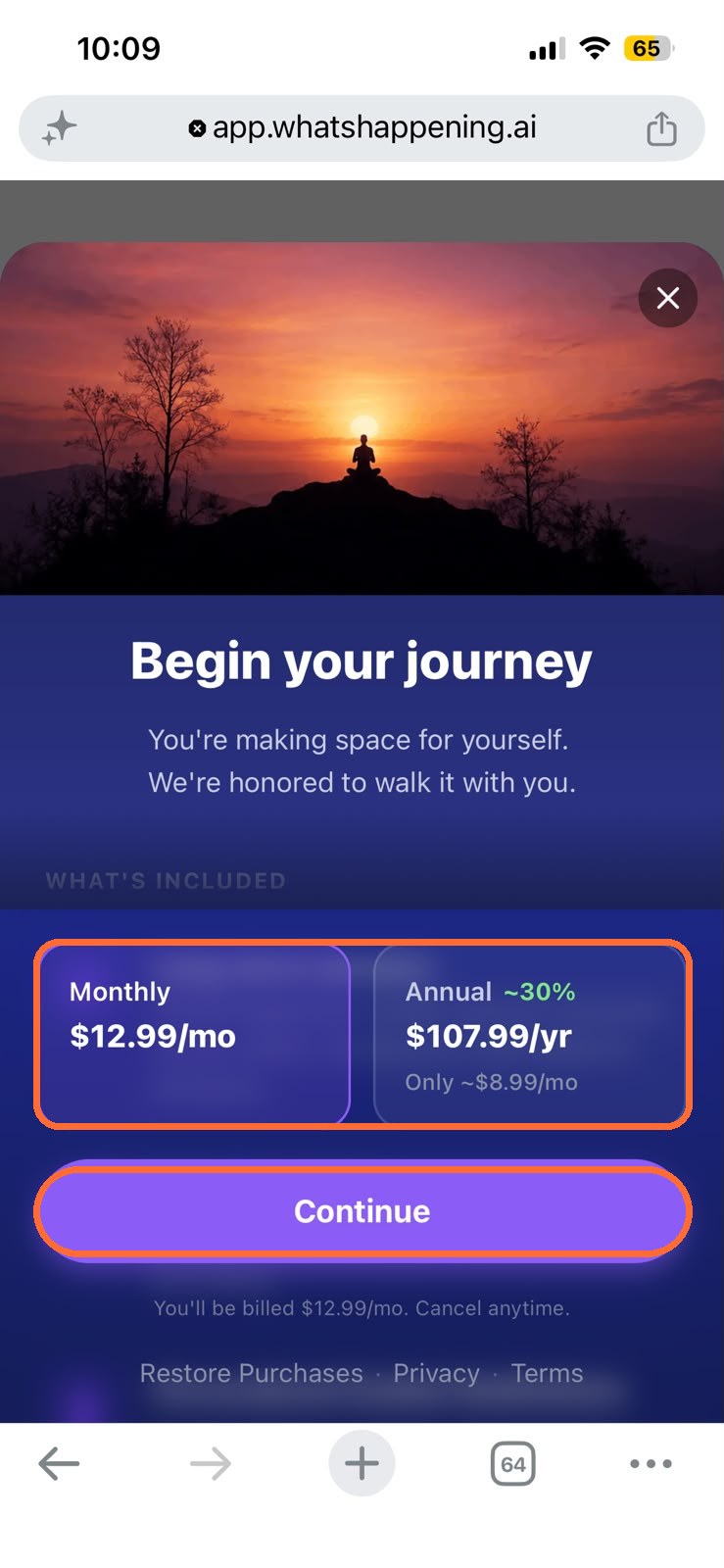
5. Choose your plan and continue
Pick Monthly or Annual, then tap Continue.
Your coupon applies to whichever plan you choose, so pick the one you actually want first.
6. Enter your coupon and press Apply
This is the step everyone's looking for. On the checkout page, type your code into the Promo code box and press Apply.
You'll see Total due today update immediately with the discount applied. That's your confirmation it worked — check it before you pay.
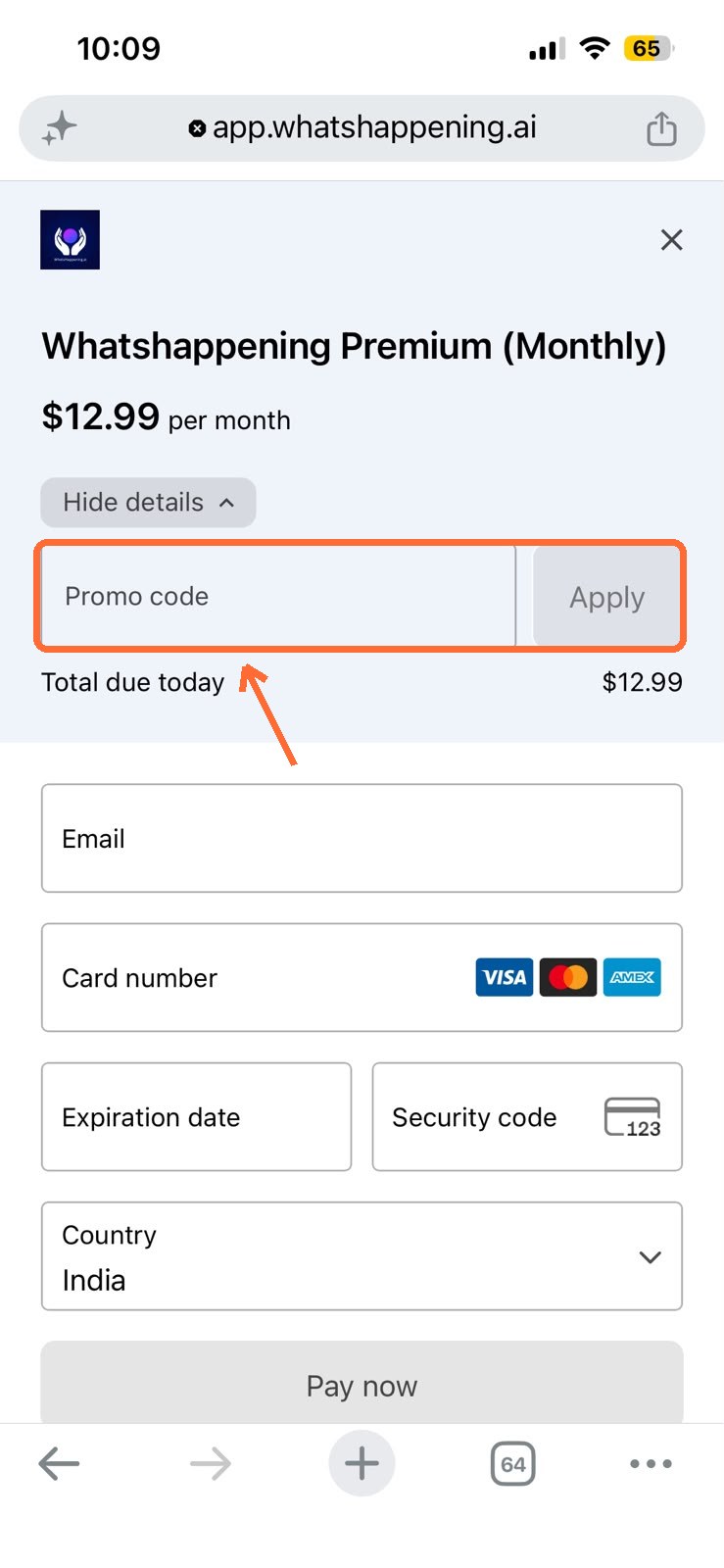
Then fill in your email and card details and tap Pay now. Done.
If the coupon doesn't apply
A few things worth checking:
- You're on the web, not the app. By far the most common one. The promo code field only exists in the web checkout.
- The code is typed exactly as given. Codes can be case-sensitive, and a trailing space pasted from a message will break it.
- The code hasn't expired or been used already. Some codes are one-time or time-limited.
- The code applies to your chosen plan. A few codes are annual-only or monthly-only.
Still stuck? Tap Support/Feedback in the menu and tell me what happened — I'll sort it out.